> ## Documentation Index
> Fetch the complete documentation index at: https://docs.grdflo.com/llms.txt
> Use this file to discover all available pages before exploring further.
# Adding Your First RFID Card
> Learn how to create a Card Holder and add an RFID card to GridFlow Core
This guide assumes you have already added a charger to GridFlow Core. If you haven't, please refer to the [Adding Your First Charger](/docs/getting-started/quick-start-guide/adding-your-first-charger) guide first.
## Overview
Adding your first RFID card involves two main steps:
1. Creating a Card Holder
2. Creating an Access Profile and restriction limits
3. Adding an RFID card to the Card Holder
Let's get started!
## Understanding Access Methods
Before adding an RFID card, it's important to understand the two primary ways to use chargers in the GridFlow Core System.
This is the primary method for your team and internal members. You'll manually set up RFID Cards for each user, making it unsuitable for public use.
This method is designed for public usage. Users can access your chargers through the GridFlow Drive Web or Mobile App by scanning a QR code on the EV Charger.
## Creating a Card Holder
It's essential to create a Card Holder before adding individual RFID cards. A Card Holder represents the primary person who will be using the card and serves as the point of contact for anything related to this card.
Access the Access Control page from the sidebar on the left.
 Click on the "Card Holders" tab in the Access Control page.
Click on the "Add Card Holder" button in the top left of the table. A sidebar will open on the right of the screen.
Provide the following information:
Enter the full name of the card holder
Enter a valid email address
Specify the card holder's position or designation
Enter a contact number for the card holder
Provide the card holder's address
Toggle and set an expiration date if needed
Click on the "Card Holders" tab in the Access Control page.
Click on the "Add Card Holder" button in the top left of the table. A sidebar will open on the right of the screen.
Provide the following information:
Enter the full name of the card holder
Enter a valid email address
Specify the card holder's position or designation
Enter a contact number for the card holder
Provide the card holder's address
Toggle and set an expiration date if needed
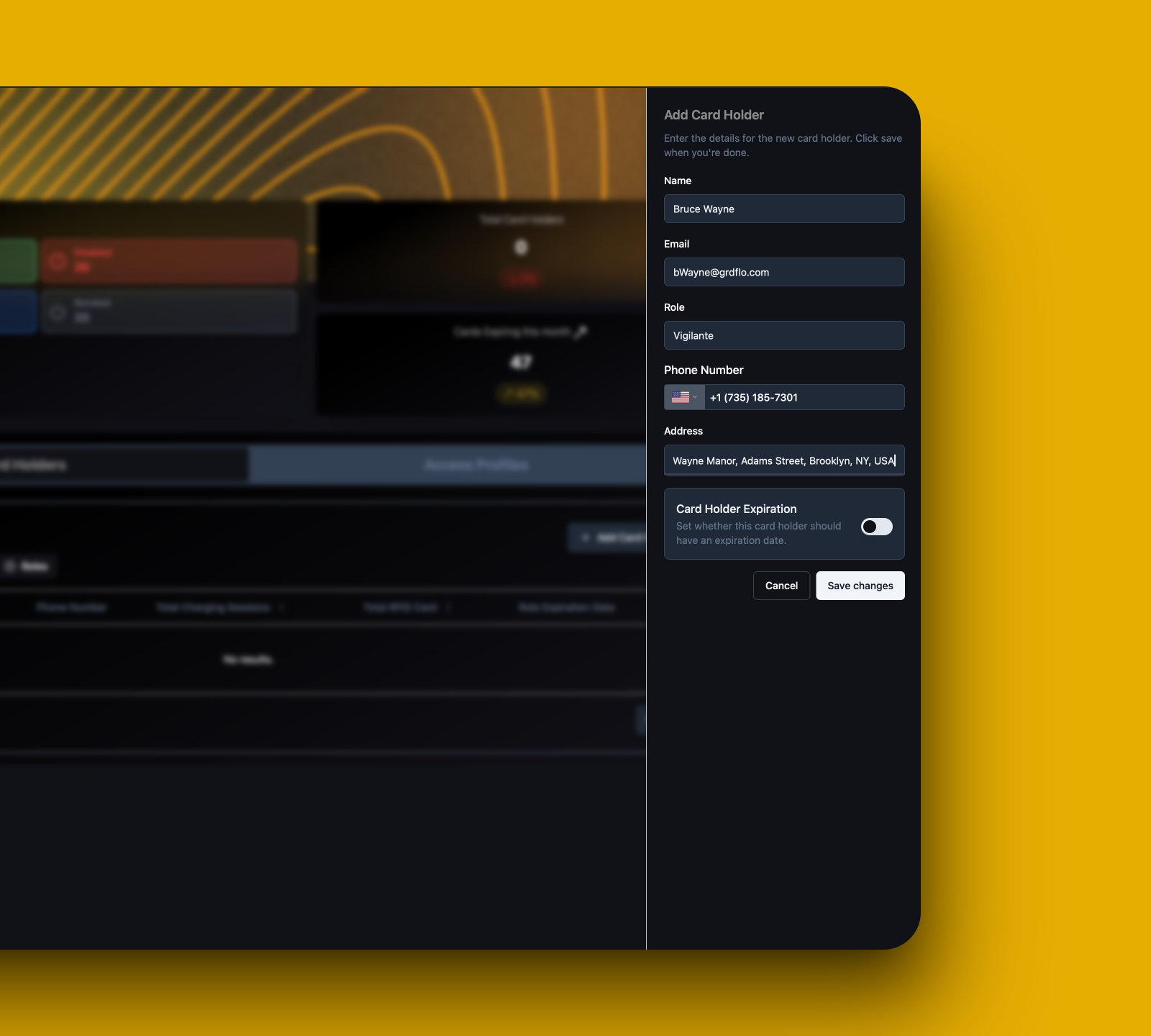 Click the "Save Changes" button to finalize the card holder creation.
Congratulations! You've successfully created your first Card Holder.
## Creating an Access Profile
Before adding RFID cards, you need to create an Access Profile that defines when and where the cards can be used. Access Profiles help manage permissions across your charging network.
On the Access Control page, click on the "Access Profiles" tab.
Click the "Save Changes" button to finalize the card holder creation.
Congratulations! You've successfully created your first Card Holder.
## Creating an Access Profile
Before adding RFID cards, you need to create an Access Profile that defines when and where the cards can be used. Access Profiles help manage permissions across your charging network.
On the Access Control page, click on the "Access Profiles" tab.
 Click on the "Create New Access Profile" button in the top right of the table. A modal will open.
 Choose a descriptive name for your profile
Examples: Maintenance Profile, Driver Profile, Staff Profile, Technician Profile
* Select Charger Groups from the dropdown (multiple selections allowed)
* Optionally select specific Charge Points (multiple selections allowed)
Add a clear description explaining the profile's purpose and scope
Restriction limits define when and how much charging is allowed for cards using this profile.
Click "Create New Restriction Limit" in the dropdown and fill out the following in the sidebar:
For each day, set:
* Active days (select which days to allow)
* Start Time
* End Time
Choose a descriptive name for your profile
Examples: Maintenance Profile, Driver Profile, Staff Profile, Technician Profile
* Select Charger Groups from the dropdown (multiple selections allowed)
* Optionally select specific Charge Points (multiple selections allowed)
Add a clear description explaining the profile's purpose and scope
Restriction limits define when and how much charging is allowed for cards using this profile.
Click "Create New Restriction Limit" in the dropdown and fill out the following in the sidebar:
For each day, set:
* Active days (select which days to allow)
* Start Time
* End Time
 Set maximum duration limits:
* Daily Max Time (Hours)
* Weekly Max Time (Hours)
* Monthly Max Time (Hours)
* All Time Max Time (Hours)
Set maximum energy consumption:
* Daily Max Energy (KWh)
* Weekly Max Energy (KWh)
* Monthly Max Energy (KWh)
* All Time Max Energy (KWh)
Allowed Weekdays:
* Monday: 10:30 - 18:00
* Wednesday: 02:30 - 23:00
Time Limits:
* Daily: 5.5 hours
* Weekly: 1.5 hours
Energy Limits:
* Daily: 23 kWh
* Weekly: 82.5 kWh
* Monthly: 597.5 kWh
* All-time: 3679.5 kWh
Double-check all settings before saving. These restrictions will apply to all RFID cards using this profile.
1. Review the summary section
2. Add a description for the restriction limit
3. Click "Save Changes"
Set maximum duration limits:
* Daily Max Time (Hours)
* Weekly Max Time (Hours)
* Monthly Max Time (Hours)
* All Time Max Time (Hours)
Set maximum energy consumption:
* Daily Max Energy (KWh)
* Weekly Max Energy (KWh)
* Monthly Max Energy (KWh)
* All Time Max Energy (KWh)
Allowed Weekdays:
* Monday: 10:30 - 18:00
* Wednesday: 02:30 - 23:00
Time Limits:
* Daily: 5.5 hours
* Weekly: 1.5 hours
Energy Limits:
* Daily: 23 kWh
* Weekly: 82.5 kWh
* Monthly: 597.5 kWh
* All-time: 3679.5 kWh
Double-check all settings before saving. These restrictions will apply to all RFID cards using this profile.
1. Review the summary section
2. Add a description for the restriction limit
3. Click "Save Changes"
 After creating the restriction limit:
1. Select it from the restriction limit dropdown
2. Review all profile settings
3. Click "Create" to finalize the access profile
You've successfully created an Access Profile! Now you can proceed to add RFID cards and assign them this profile.
## Adding an RFID Card
Now that you've created a card holder, let's add an RFID card to their profile.
Find your newly created Card Holder in the table and click on it.
After creating the restriction limit:
1. Select it from the restriction limit dropdown
2. Review all profile settings
3. Click "Create" to finalize the access profile
You've successfully created an Access Profile! Now you can proceed to add RFID cards and assign them this profile.
## Adding an RFID Card
Now that you've created a card holder, let's add an RFID card to their profile.
Find your newly created Card Holder in the table and click on it.
 In the modal that opens, locate the RFID Cards table on the right.
Click the "Create a new RFID" button in the top right of the RFID Cards table. A sidebar will open on the right.
Provide the following information:
Enter the unique identifier of the RFID card
Select one of the following options:
* Mifare Plus
* Mifare Classic (not recommended)
* Mifare DESFire
Choose whether the card should be:
* Enabled (ready for immediate use)
* Disabled (can be enabled later)
Select an appropriate access profile from the dropdown
Toggle and set an expiration date if needed
In the modal that opens, locate the RFID Cards table on the right.
Click the "Create a new RFID" button in the top right of the RFID Cards table. A sidebar will open on the right.
Provide the following information:
Enter the unique identifier of the RFID card
Select one of the following options:
* Mifare Plus
* Mifare Classic (not recommended)
* Mifare DESFire
Choose whether the card should be:
* Enabled (ready for immediate use)
* Disabled (can be enabled later)
Select an appropriate access profile from the dropdown
Toggle and set an expiration date if needed
 Click on the "Create" button. You should now see your new RFID card listed in the Card Holder's RFID Cards table.
Congratulations! You've successfully added your first RFID card to GridFlow Core.
## Verification
If everything went smoothly, you should now see:
* Your new RFID card listed in the Card Holder's RFID Cards table
* The card status as "Enabled" (if you chose to enable it)
* The assigned Access Profile for the card
Click on the "Create" button. You should now see your new RFID card listed in the Card Holder's RFID Cards table.
Congratulations! You've successfully added your first RFID card to GridFlow Core.
## Verification
If everything went smoothly, you should now see:
* Your new RFID card listed in the Card Holder's RFID Cards table
* The card status as "Enabled" (if you chose to enable it)
* The assigned Access Profile for the card
 ## Next Steps
Now that you've added your first RFID card, consider exploring these related features:
Configure and manage access permissions for different user groups
Learn how to add multiple RFID cards efficiently
Track and analyze RFID card usage across your charger network
Resolve common RFID-related problems
Our support team is here to help:
[support@core.grdflo.com](mailto:support@core.grdflo.com)
Chat with us in real-time by clicking on the chat icon in the bottom right corner.
## Next Steps
Now that you've added your first RFID card, consider exploring these related features:
Configure and manage access permissions for different user groups
Learn how to add multiple RFID cards efficiently
Track and analyze RFID card usage across your charger network
Resolve common RFID-related problems
Our support team is here to help:
[support@core.grdflo.com](mailto:support@core.grdflo.com)
Chat with us in real-time by clicking on the chat icon in the bottom right corner.